
.png)
.png)
.png)
.png)



 Home > frequently > TM-C3520 printing form, vertical lines have misalignment phenomenon, how to solve it? -Epson Product FAQ - Epson China
TM-C3520 printing form, vertical lines have misalignment phenomenon, how to solve it? -Epson Product FAQ - Epson China
文档编号:380005
1、 Phenomenon description:
When printing a table, the vertical lines in the table appear to be misaligned, as shown in the following figure.
2、 Solution:Method 1:
Open the control panel of the computer -->Devices and Printers -->Right click on the icon of the printer -->Printer Properties -->Preferences -->General -->Print Quality -->Customization -->Advanced -->Cancel "Bidirectional Printing".(As shown in Figure 1) 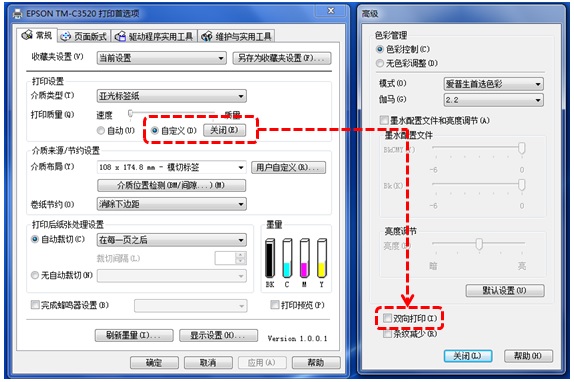
Figure 1
Note:Adjusting according to this method will reduce the printing speed.
Method 2:
1. Open the control panel of the computer -->Devices and Printers -->Right click on the icon of the printer -->Printer Properties -->Preferences -->Maintenance and Utilities -->Printer Settings -->Printer Adjustment -->Print Head Adjustment -->Bi directional Printing Adjustment -->Start Adjustment(As shown in Figure 2) 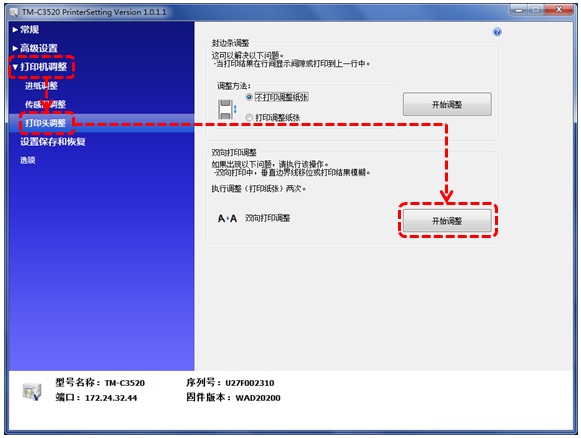
Figure 2
2. After clicking "Start Adjustment", a prompt message as shown in Figure 3 will appear. Click OK. 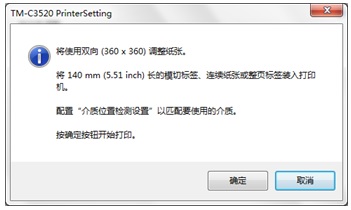
Fig 3
3. The printer will print a set of graphics, fill in the number of the graphic with the fewest white vertical lines in the dialog box that appears later, and click "OK",As shown in Figure 4。
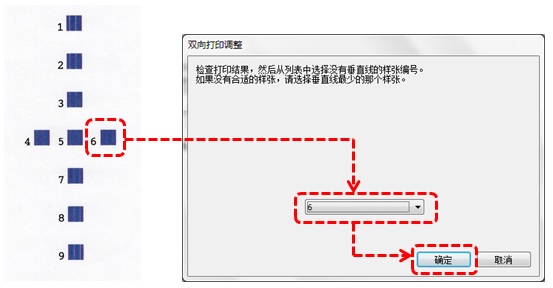
Figure 4
4. Click 'Yes' when prompted' Are you sure you want to start adjusting? '. Click 'OK' when prompted 'Configuration completed successfully'.
5. Follow the prompts that appear later and repeat steps 2, 3, and 4.
Updated on December 22, 2016