
.png)
.png)
.png)
.png)



 Home > frequently > How to solve the problem of incomplete content printed by TM-C3520? -Epson Product FAQ - Epson China
How to solve the problem of incomplete content printed by TM-C3520? -Epson Product FAQ - Epson China
Document Number: 380050
(This article takes die-cutting label paper and Word2010 application software as examples for explanation)
1、 Phenomenon description:
The content on the left or right side of the label output by the printer exceeds the boundary of the label and is printed onto the backing paper, and may even be missing,As shown in Figure 1. 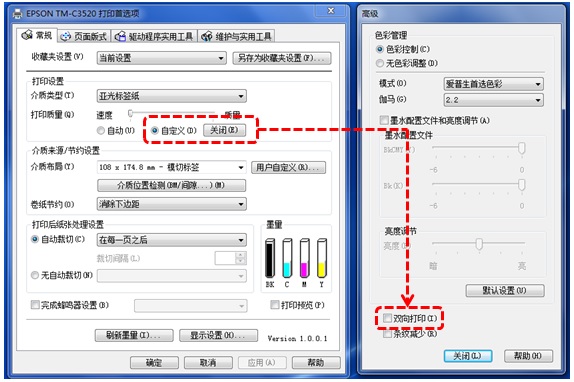
Figure 1
2、 Reason for the problem:
The actual paper size used is inconsistent with the default paper size in the printer driver and application software.
3、 Solution:
Step 1: Open the computer's control panel -->Devices and Printers -->Right click on the printer icon -->Printer Properties -->Preferences -->General -->Media Source/Saving Settings -->User Customization -->Select the appropriate "media form" -->Set according to the actual specifications of the label paper: label width/length, liner width, gap width, etc. -->Customize the label name in the "Media Layout Name" -->Click "Add" -->Click "Close"(As shown in Figure 2)。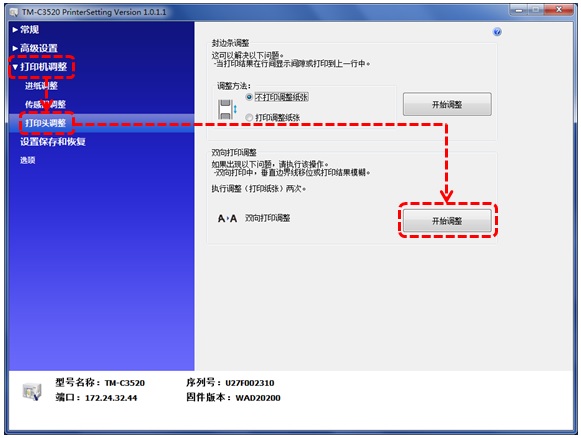
Figure 2
Step 2: Return to the "General" page in the printing preferences, select the custom label name in the "Media Layout", and then click "OK"(As shown in Figure 3)。
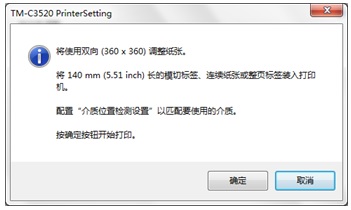
Fig 3
Step 3: Open the roll paper compartment cover of the printer and set the position of the slider according to the width of the paper. For example, the width of the die-cutting label paper used in this article is 76mm, and the slider should be adjusted to position ②.As shown in Figure 4。
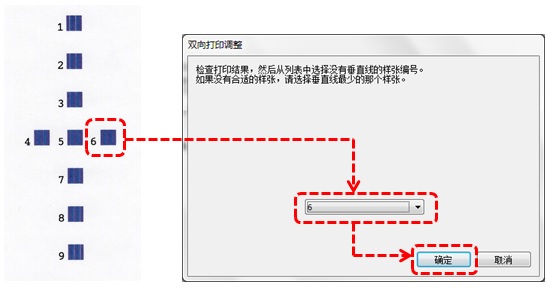
Figure 4
Step 4: In the application software, select the paper size as the custom label name (as shown in Figure 5), and adjust the layout and font size to achieve a more ideal preview effect. Then print it. 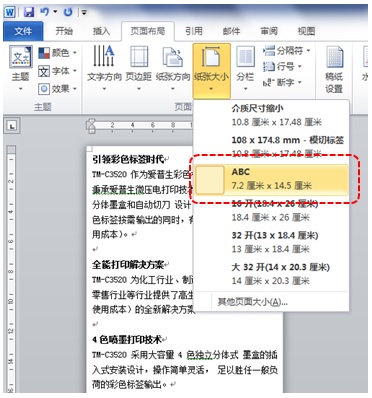
Figure 5
Creation time: December 22, 2016